How to verify Googlebot

Wednesday, September 20, 2006

Lately I've heard a couple smart people ask that search engines provide a way know that a bot is authentic. After all, any spammer could name their bot "Googlebot" and claim to be Google, so which bots do you trust and which do you block?

The common request we hear is to post a list of Googlebot IP addresses in some public place. The problem with that is that if/when the IP ranges of our crawlers change, not everyone will know to check. In fact, the crawl team migrated Googlebot IPs a couple years ago and it was a real hassle alerting webmasters who had hard-coded an IP range. So the crawl folks have provided another way to authenticate Googlebot. Here's an answer from one of the crawl people (quoted with their permission):


Telling webmasters to use DNS to verify on a case-by-case basis seems like the best way to go. I think the recommended technique would be to do a reverse DNS lookup, verify that the name is in the googlebot.com domain, and then do a corresponding forward DNS->IP lookup using that googlebot.com name; eg:

> host 66.249.66.1
1.66.249.66.in-addr.arpa domain name pointer crawl-66-249-66-1.googlebot.com.

> host crawl-66-249-66-1.googlebot.com
crawl-66-249-66-1.googlebot.com has address 66.249.66.1

I don't think just doing a reverse DNS lookup is sufficient, because a spoofer could set up reverse DNS to point to crawl-a-b-c-d.googlebot.com.


This answer has also been provided to our help-desk, so I'd consider it an official way to authenticate Googlebot. In order to fetch from the "official" Googlebot IP range, the bot has to respect robots.txt and our internal hostload conventions so that Google doesn't crawl you too hard.

(Thanks to N. and J. for help on this answer from the crawl side of things.)

Debugging blocked URLs

Tuesday, September 19, 2006

Vanessa's been posting a lot lately, and I'm starting to feel left out. So here my tidbit of wisdom for you: I've noticed a couple of webmasters confused by "blocked by robots.txt" errors, and I wanted to share the steps I take when debugging robots.txt problems:

A handy checklist for debugging a blocked URL

Let's assume you are looking at crawl errors for your website and notice a URL restricted by robots.txt that you weren't intending to block:
http://www.example.com/amanda.html URL restricted by robots.txt Sep 3, 2006

Check the robots.txt analysis tool
The first thing you should do is go to the robots.txt analysis tool for that site. Make sure you are looking at the correct site for that URL, paying attention that you are looking at the right protocol and subdomain. (Subdomains and protocols may have their own robots.txt file, so https://www.example.com/robots.txt may be different from http://example.com/robots.txt and may be different from http://amanda.example.com/robots.txt.) Paste the blocked URL into the "Test URLs against this robots.txt file" box. If the tool reports that it is blocked, you've found your problem. If the tool reports that it's allowed, we need to investigate further.

At the top of the robots.txt analysis tool, take a look at the HTTP status code. If we are reporting anything other than a 200 (Success) or a 404 (Not found) then we may not be able to reach your robots.txt file, which stops our crawling process. (Note that you can see the last time we downloaded your robots.txt file at the top of this tool. If you make changes to your file, check this date and time to see if your changes were made after our last download.)

Check for changes in your robots.txt file
If these look fine, you may want to check and see if your robots.txt file has changed since the error occurred by checking the date to see when your robots.txt file was last modified. If it was modified after the date given for the error in the crawl errors, it might be that someone has changed the file so that the new version no longer blocks this URL.

Check for redirects of the URL
If you can be certain that this URL isn't blocked, check to see if the URL redirects to another page. When Googlebot fetches a URL, it checks the robots.txt file to make sure it is allowed to access the URL. If the robots.txt file allows access to the URL, but the URL returns a redirect, Googlebot checks the robots.txt file again to see if the destination URL is accessible. If at any point Googlebot is redirected to a blocked URL, it reports that it could not get the content of the original URL because it was blocked by robots.txt.

Sometimes this behavior is easy to spot because a particular URL always redirects to another one. But sometimes this can be tricky to figure out. For instance:
  • Your site may not have a robots.txt file at all (and therefore, allows access to all pages), but a URL on the site may redirect to a different site, which does have a robots.txt file. In this case, you may see URLs blocked by robots.txt for your site (even though you don't have a robots.txt file).
  • Your site may prompt for registration after a certain number of page views. You may have the registration page blocked by a robots.txt file. In this case, the URL itself may not redirect, but if Googlebot triggers the registration prompt when accessing the URL, it will be redirected to the blocked registration page, and the original URL will be listed in the crawl errors page as blocked by robots.txt.

Ask for help
Finally, if you still can't pinpoint the problem, you might want to post on our forum for help. Be sure to include the URL that is blocked in your message. Sometimes its easier for other people to notice oversights you may have missed.

Good luck debugging! And by the way -- unrelated to robots.txt -- make sure that you don't have "noindex" meta tags at the top of your web pages; those also result in Google not showing a web site in our index.

For Those Wondering About Public Service Search

Friday, September 15, 2006

Update: The described product or service is no longer available. More information.

We recently learned of a security issue with our Public Service Search service and disabled login functionality temporarily to protect our Public Service Search users while we were working to fix the problem. We are not aware of any malicious exploits of this problem and this service represents an extremely small portion of searches.

We have a temporary fix in place currently that prevents exploitation of this problem and will have a permanent solution in place shortly. Unfortunately, the temporary fix may inconvenience a small number of Public Service Search users in the following ways:

* Public Service Search is currently not open to new signups.
* If you use Public Service Search on your site, you are currently unable to log in to make changes, but rest assured that Public Service Search continues to function properly on your site.
* The template system is currently disabled, so search results will appear in a standard Google search results format, rather than customized to match the look and feel of your site. However, the search results themselves are not being modified.


If you are a Public Service Search user and are having trouble logging in right now, please sit tight. As soon as the permanent solution is in place the service will be back on its feet again. In the meantime, you will still be able to provide site-specific searches on your site as usual.

Google introduced this service several years ago to support universities and non-profit organizations by offering ad-free search capabilities for their sites. Our non-profit and university users are extremely important to us and we apologize for any inconvenience this may cause.

Please post any questions or concerns in our webmaster discussion forum and we'll try our best to answer any questions you may have.

Setting the preferred domain

Tuesday, September 12, 2006

Based on your input, we've recently made a few changes to the preferred domain feature of webmaster tools. And since you've had some questions about this feature, we'd like to answer them.

The preferred domain feature enables you to tell us if you'd like URLs from your site crawled and indexed using the www version of the domain (http://www.example.com) or the non-www version of the domain (http://example.com). When we initially launched this, we added the non-preferred version to your account when you specified a preference so that you could see any information associated with the non-preferred version. But many of you found that confusing, so we've made the following changes:
  • When you set the preferred domain, we no longer will add the non-preferred version to your account.
  • If you had previously added the non-preferred version to your account, you'll still see it listed there, but you won't be able to add a Sitemap for the non-preferred version.
  • If you have already set the preferred domain and we had added the non-preferred version to your account, we'll be removing that non-preferred version from your account over the next few days.
Note that if you would like to see any information we have about the non-preferred version, you can always add it to your account.

Here are some questions we've had about this preferred domain feature, and our replies.

Once I've set my preferred domain, how long will it take before I see changes?
The time frame depends on many factors (such as how often your site is crawled and how many pages are indexed with the non-preferred version). You should start to see changes in the few weeks after you set your preferred domain.

Is the preferred domain feature a filter or a redirect? Does it simply cause the search results to display on the URLs that are in the version I prefer?
The preferred domain feature is not a filter. When you set a preference, we:
  • Consider all links that point to the site (whether those links use the www version or the non-www version) to be pointing at the version you prefer. This helps us more accurately determine PageRank for your pages.
  • Once we know that both versions of a URL point to the same page, we try to select the preferred version for future crawls.
  • Index pages of your site using the version you prefer. If some pages of your site are indexed using the www version and other pages are indexed using the non-www version, then over time, you should see a shift to the preference you've set.
If I use a 301 redirect on my site to point the www and non-www versions to the same version, do I still need to use this feature?
You don't have to use it, as we can follow the redirects. However, you still can benefit from using this feature in two ways: we can more easily consolidate links to your site and over time, we'll direct our crawl to the preferred version of your pages.

If I use this feature, should I still use a 301 redirect on my site?
You don't need to use it for Googlebot, but you should still use the 301 redirect, if it's available. This will help visitors and other search engines. Of course, make sure that you point to the same URL with the preferred domain feature and the 301 redirect.

You can find more about this in our webmaster help center.

Information about Sitelinks

Thursday, September 7, 2006

You may have noticed that some search results include a set of links below them to pages within the site. We've just updated our help center with information on how we generate these links, called Sitelinks, and why we show them.

Our process for generating Sitelinks is completely automated. We show them when we think they'll be most useful to searchers, saving them time from hunting through web pages to find the information they are looking for. Over time, we may look for ways to incorporate input from webmasters too.

Better details about when Googlebot last visited a page

Tuesday, September 5, 2006

Most people know that Googlebot downloads pages from web servers to crawl the web. Not as many people know that if Googlebot accesses a page and gets a 304 (Not-Modified) response to a If-Modified-Since qualified request, Googlebot doesn't download the contents of that page. This reduces the bandwidth consumed on your web server.

When you look at Google's cache of a page (for instance, by using the cache: operator or clicking the Cached link under a URL in the search results), you can see the date that Googlebot retrieved that page. Previously, the date we listed for the page's cache was the date that we last successfully fetched the content of the page. This meant that even if we visited a page very recently, the cache date might be quite a bit older if the page hadn't changed since the previous visit. This made it difficult for webmasters to use the cache date we display to determine Googlebot's most recent visit. Consider the following example:
  1. Googlebot crawls a page on April 12, 2006.
  2. Our cached version of that page notes that "This is G o o g l e's cache of http://www.example.com/ as retrieved on April 12, 2006 20:02:06 GMT."
  3. Periodically, Googlebot checks to see if that page has changed, and each time, receives a Not-Modified response. For instance, on August 27, 2006, Googlebot checks the page, receives a Not-Modified response, and therefore, doesn't download the contents of the page.
  4. On August 28, 2006, our cached version of the page still shows the April 12, 2006 date -- the date we last downloaded the page's contents, even though Googlebot last visited the day before.
We've recently changed the date we show for the cached page to reflect when Googlebot last accessed it (whether the page had changed or not). This should make it easier for you to determine the most recent date Googlebot visited the page. For instance, in the above example, the cached version of the page would now say "This is G o o g l e's cache of http://www.example.com/ as retrieved on August 27, 2006 13:13:37 GMT."

Note that this change will be reflected for individual pages as we update those pages in our index.

How search results may differ based on accented characters and interface languages

Thursday, August 31, 2006

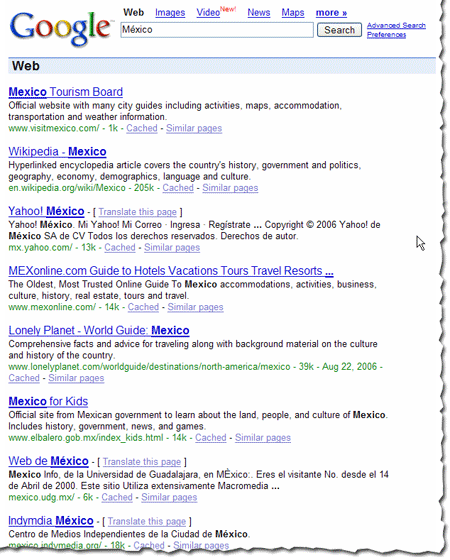
When a searcher enters a query that includes a word with accented characters, our algorithms consider web pages that contain versions of that word both with and without the accent. For instance, if a searcher enters [México], we'll return results for pages about both "Mexico" and "México."


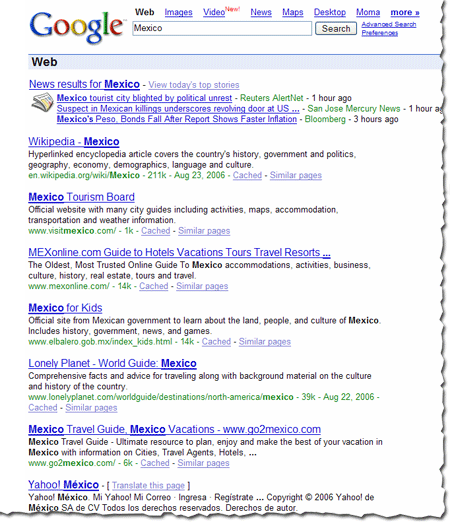
Conversely, if a searcher enters a query without using accented characters, but a word in that query could be spelled with them, our algorithms consider web pages with both the accented and non-accented versions of the word. So if a searcher enters [Mexico], we'll return results for pages about both "Mexico" and "México."


How the searcher's interface language comes into play
The searcher's interface language is taken into account during this process. For instance, the set of accented characters that are treated as equivalent to non-accented characters varies based on the searcher's interface language, as language-level rules for accenting differ.

Also, documents in the chosen interface language tend to be considered more relevant. If a searcher's interface language is English, our algorithms assume that the queries are in English and that the searcher prefers English language documents returned.

This means that the search results for the same query can vary depending on the language interface of the searcher. They can also vary depending on the location of the searcher (which is based on IP address) and if the searcher chooses to see results only from the specified language. If the searcher has personalized search enabled, that will also influence the search results.

The example below illustrates the results returned when a searcher queries [Mexico] with the interface language set to Spanish.


Note that when the interface language is set to Spanish, more results with accented characters are returned, even though the query didn't include the accented character.

How to restrict search results
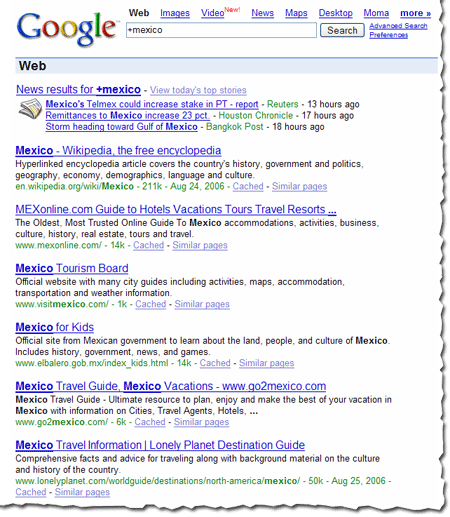
To obtain search results for only a specific version of the word (with or without accented characters), you can place a + before the word. For instance, the search [+Mexico] returns only pages about "Mexico" (and not "México"). The search [+México] returns only pages about "México" and not "Mexico." Note that you may see some search results that don't appear to use the version of word you specified in your query, but that version of the word may appear within the content of the page or in anchor text to the page, rather than in the title or description listed in the results. (You can see the top anchor text used to link to your site by choosing Statistics > Page analysis in webmaster tools.)

The example below illustrates the results returned when a searcher queries [+Mexico].